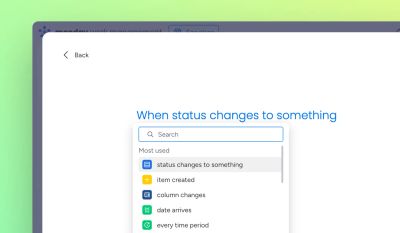
monday.com automations are how teams stop doing the same thing twice. A status changes and an owner is assigned. A due date passes and a manager is notified. A new item is created and a folder appears in SharePoint. None of it requires anyone to remember, check, or act manually.
This guide covers everything: how automations work, the different types available, patterns for specific teams, where native automation hits its limits, and how to extend it when you need more.
What monday.com automations actually are
An automation in monday.com is a rule: when something happens, do something else.
Every automation has three components:
- Trigger – the event that starts the automation (a status change, a date arriving, an item being created)
- Condition – an optional filter that limits when the automation fires (only if priority is High, only if assignee is empty)
- Action – what happens as a result (notify someone, move an item, create a subitem, send a webhook)
monday.com ships hundreds of pre-built automation recipes covering the most common combinations. You can also build custom automations by combining triggers, conditions and actions yourself.
→ monday.com automation for beginners – how to set up your first recipe
Recipes, workflows and AI automation
monday.com offers three overlapping layers of automation:
Automation recipes
The standard automation engine. Trigger → condition → action, configured in a visual builder. These handle the majority of automation needs: status-driven notifications, due date escalations, item routing between boards, subitem creation, and integrations with Slack, email and third-party apps.
Recipes run per-board and are configured by board owners. They are the right starting point for most teams.
Workflows
Workflows extend automations across boards and workspaces. Where a recipe is confined to a single board, a workflow can span the full lifecycle of a process – intake board to active board to completed board – with conditional branching, parallel paths and cross-board data movement.
→ An introduction to workflows in monday.com
AI automations
monday.com's AI layer can classify items, summarise updates, suggest next actions and generate content based on board data. These are newer capabilities that sit alongside the automation engine rather than replacing it.
→ How monday.com hit AI escape velocity
What automations are best at
Eliminating repetitive task management
The most immediate return from automations is removing the manual steps that slow every team down: reassigning items when status changes, notifying the right person at the right time, keeping due dates in sync, and creating subitems when a new project is opened.
→ How monday.com automations simplify task management
Ops team workflows: SLA enforcement and routing
Operations teams have specific automation needs that go beyond simple reminders. They need SLAs enforced without anyone chasing, tasks routed to the right owner based on type or region, and guardrails that prevent incorrect status changes.
The patterns are well-established: status-driven ownership changes, timed escalations, cross-board item routing, conditional notifications that only fire when they genuinely matter.
→ monday.com automation for ops teams: SLA enforcement, task routing and workflow guardrails
Enterprise IT: governance, compliance and audit trails
Enterprise IT teams need something different from automation. The goal is not just efficiency – it is auditability. Every approval must be recorded. Every access change must be controlled. Every status transition must pass a governance check.
monday.com automations can enforce structured approval chains, block status changes until required fields are filled, and trigger audit log entries. Combined with role-based board permissions, they form the governance layer that makes monday.com viable for compliance-sensitive organisations.
→ monday.com automation for enterprise IT: governance, compliance and access control
Error handling and reliability
Automations fail. A webhook times out. A connected app is unavailable. A formula returns an unexpected value. How your setup handles these failures determines whether automation genuinely replaces manual work or just adds a new failure mode to monitor.
monday.com surfaces automation errors in the automation log. Building reliable automation means knowing which failures to alert on, which to retry, and which to handle gracefully with fallback logic.
→ Error handling in monday.com workflows
Automating across Microsoft 365 and SharePoint
Using monday.com and SharePoint together?
The Microsoft 365 SharePoint integration for monday.com lets your team manage SharePoint files, sync Excel data, generate documents, and embed Microsoft 365 views — all inside monday.com, with full M365 permissions. Free for up to 2 users.
Start free →Many teams using monday.com also run on Microsoft 365. The manual work between the two platforms – creating SharePoint folders, generating Word documents, sending formatted emails – is an obvious automation target.
The Microsoft 365 SharePoint integration for monday.com extends monday.com's automation engine into Microsoft 365:
- Folder creation – automatically create SharePoint folders when a new item or project is created on a board
- Document generation – trigger Word, PDF and HTML email generation from board data using templates stored in SharePoint
- Excel sync – import rows from SharePoint-hosted Excel files into monday.com boards on a schedule, or export board data back to Excel
→ How we modernised mail merge for the monday.com generation
→ How to create invoices in monday.com using the Microsoft 365 SharePoint integration
→ The complete guide to Microsoft 365 SharePoint integration with monday.com
When native automation isn't enough
monday.com's built-in automation engine is deliberately kept simple. The recipes are easy to set up, easy to understand, and hard to break. That simplicity is a feature – until your requirements outgrow it.
The most common gaps:
- Complex conditions – native automations support simple if/then logic; multi-condition branching with fallbacks requires apps or workflows
- Business hours logic – SLA calculations that pause at weekends or outside working hours are not natively supported
- Bulk operations – event-driven automations fire per-item; batch updates across hundreds of items require external tooling
- Deep cross-board intelligence – native automations can move items between boards but struggle with conditional field mapping and multi-board data aggregation
- True enforcement – native automations can notify and suggest; preventing a status change or reverting one requires apps with board-level enforcement capability
Purpose-built monday.com apps fill these gaps without breaking how teams already work.
👉 Explore David Simpson Apps on the monday.com Marketplace
Where to start
If you are new to monday.com automations, start with the beginner's guide and set up one recipe on your most active board. The return is immediate and the concepts carry through to everything else.
If you have a specific team context – ops, enterprise IT, Microsoft 365 – go directly to the relevant guide. The patterns are practical and ready to implement.
If you are already running automations and hitting the limits of the native engine, the sections on error handling and app extensions are where to focus.