Configuration
Navigation
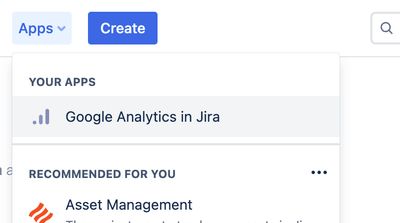
From the Apps menu, select Google Analytics in Jira:
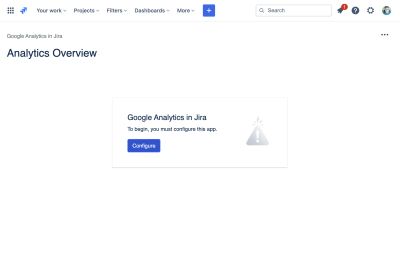
If the app has not been configured, press the blue Configure button in the centre of the screen:
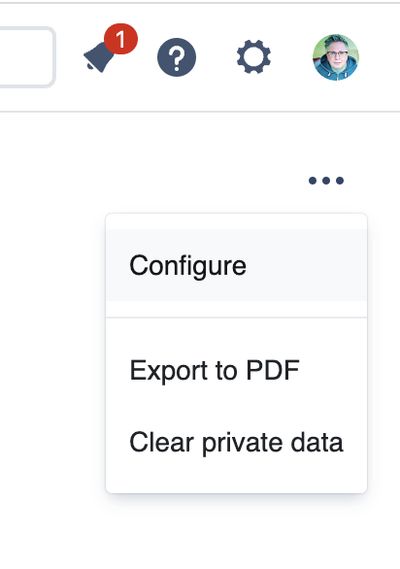
If the app has previously been configured, select Configure from the "•••" / Tools menu in the top right corner:
From the Data Collection tab, press/click on the Reporting tab.
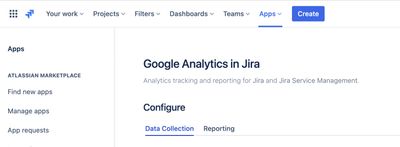
Configuration screen
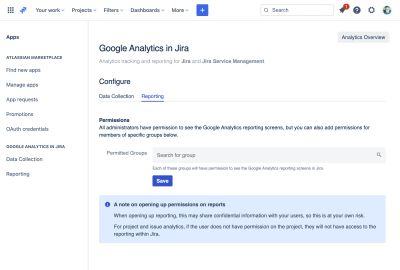
Jira administrators always have access to the reporting screens, but it is also possible to allow others based on the groups they belong to.
Search for a group in the Permitted Groups field:
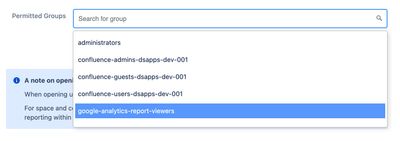
It is considered best practice to add all users you wish to have access to Google Analytics in a single group – name the group something sensible, like google-analytics-report-viewers:
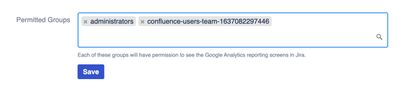
If necessary, you can add multiple groups, then press the Save button.
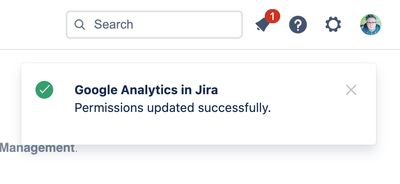
Upon save, the following message will appear:
How reporting permissions works
Any user in the permitted groups will have access Google Analytics Reports within Jira, without the need for a Google Analytics account.