In Google Analytics
Sign in to your Google Analytics account
We recommend you use a shared service account and document who has access to this account within Confluence.
Set up Analytics for a new website
- On the Start collecting data screen, select:
- Choose a platform: Web
- On the Set up data stream screen, set the following:
- Website URL:
yourcompanyname.atlassian.net - Stream name: Jira Cloud
- Website URL:
- On the Start collecting data screen, select:
In Jira
From the Apps menu, select Google Analytics in Jira:

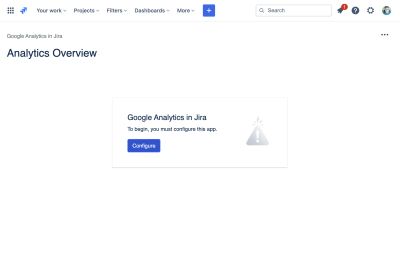
If the app has not been configured, press the blue Configure button in the centre of the screen:
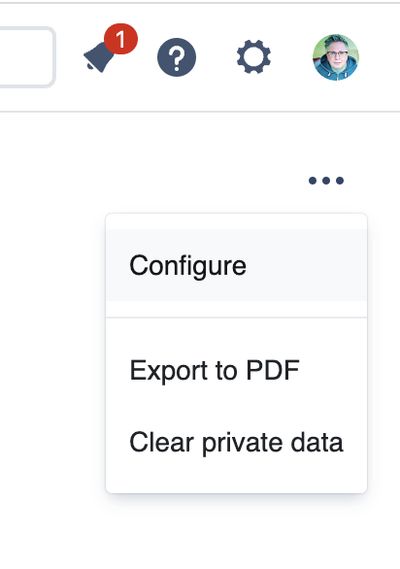
If the app has previously been configured, select Configure from the "•••" / Tools menu in the top right corner:
Sign in with Google
Press the Sign in with Google button

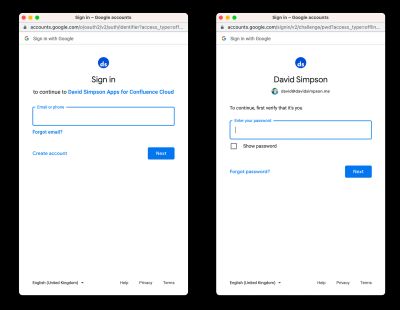
A new window opens for you to sign to Google.
If you're not already signed in, you'll see a username, and then password screens:
After signing in with Google, you'll see this screen:
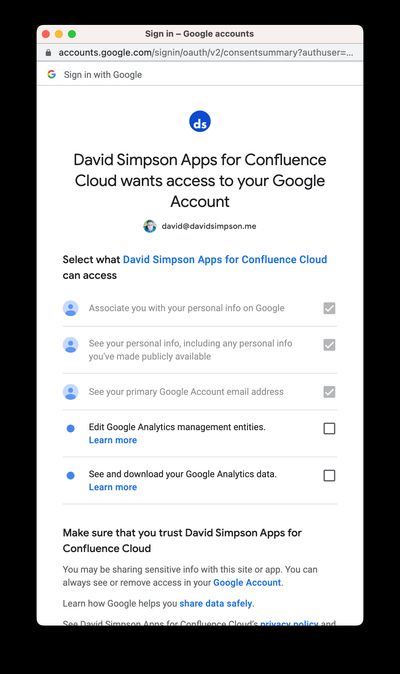
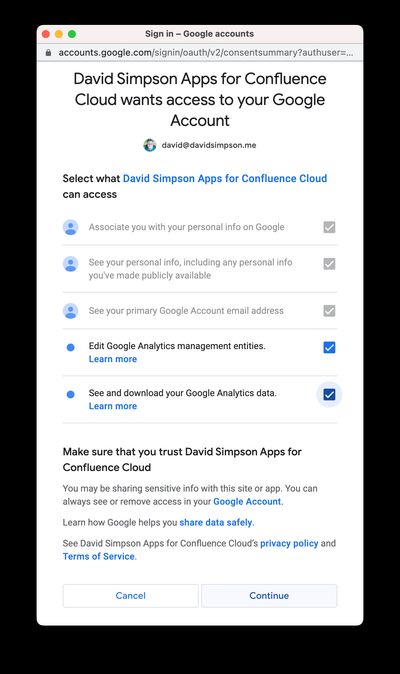
Make sure that you check the boxes:
✅ Edit Google Analytics management entities
✅ See and download Google Analytics data
Then scroll down and press Continue:
Configure Property
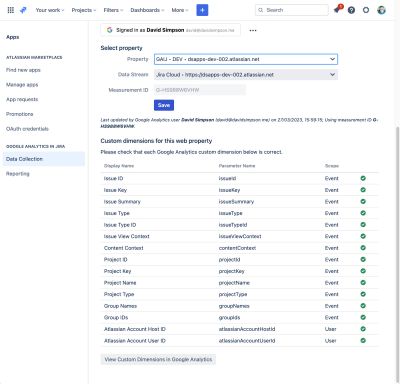
You will be redirected back to Jira and then be able to select a property from the Property dropdown:
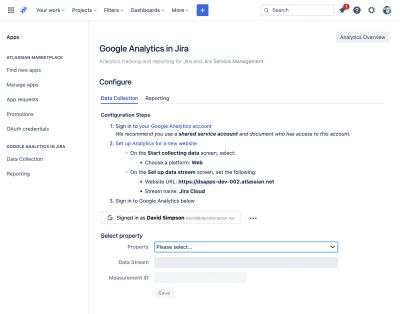
If necessary, select a Data Stream – likely this is already populated – then press Save.
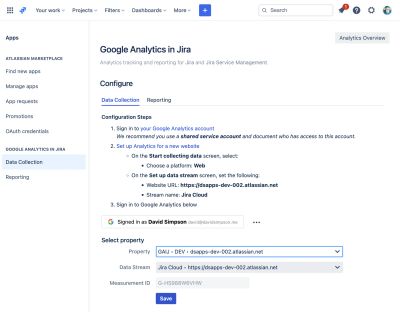
You should then see this confirmation:
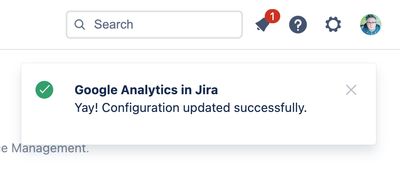
If not, reload the page and try again.
Configuring Custom Dimensions
For the app to work correctly, you have ensure that the custom dimensions have been created.
If you see any red crossed next to the custom dimension, then take the next step…
Press the Update Custom Dimensions in Google Analytics button:
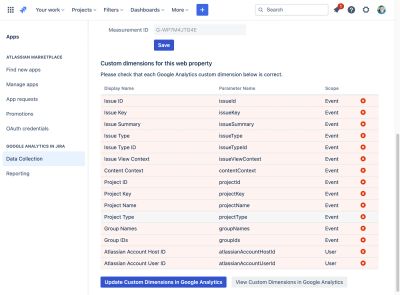
It takes a few seconds to create the custom dimensions, and you'll see some loading indicators while this happens:
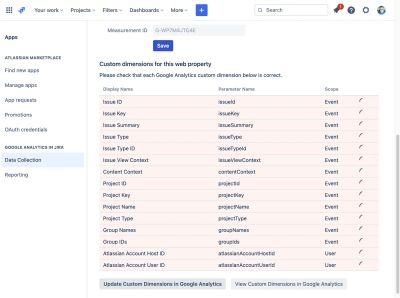
When all custom dimensions have been created, you see a nice green column of checks ✅