Navigation
Atlassian made it harder to get to configuration screens, so this is the fastest way to get to the correct screen...
In your browser, enter the following URL:
https://yourinstance.atlassian.net/wiki/plugins/servlet/ac/me.davidsimpson.confluence.addon.google-analytics-for-confluence/reporting-admin
Where yourinstance.atlassian.net is your Confluence domain name.
Configuration screen
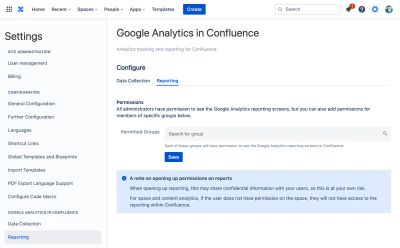
Confluence administrators always have access to the reporting screens, but it is also possible to allow others based on the groups they belong to.
Search for a group in the Permitted Groups field:
Check the related article: Creating groups for use in Confluence
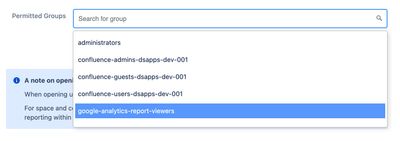
It is considered best practice to add all users you wish to have access to Google Analytics in a single group – name the group something sensible, like google-analytics-report-viewers:
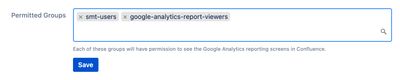
If necessary, you can add multiple groups, then press the Save button.
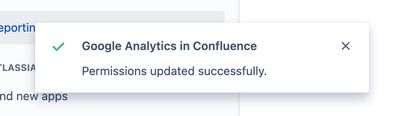
On save, the following message will appear:
How reporting permissions works
Any user in the permitted groups will have access Google Analytics Reports within Confluence, without the need for a Google Analytics account.
If you've upgraded from a previous version of the app, you may still have access to reporting using Universal Analytics.
If this is the case, see the Getting Started guide for the current configuration steps.