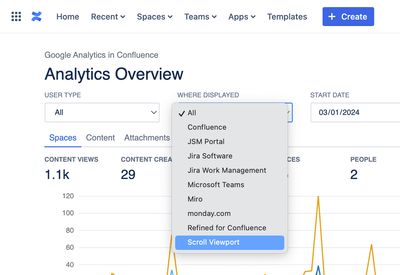
To enable Google Analytics tracking in Scroll Viewport for Confluence Cloud, follow the steps below.
In Confluence
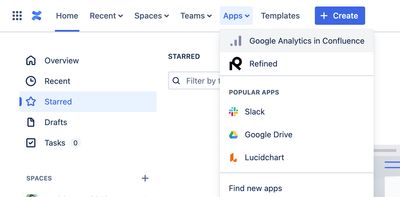
Step 1. Access the Apps menu and select Google Analytics in Confluence.
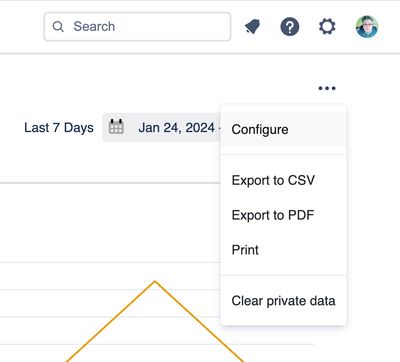
Step 2. Select Configure from the Tools menu.
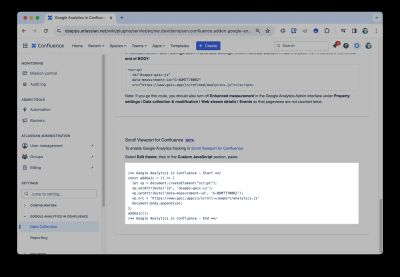
Step 3. Scroll to the bottom of the screen and copy the JavaScript highlighted there.
In Scroll Viewport
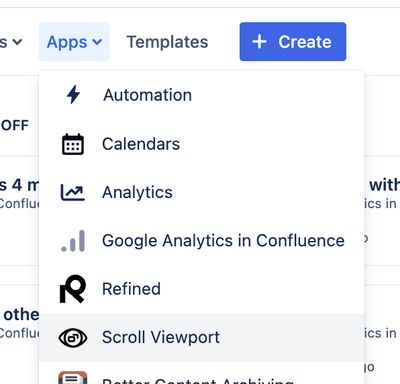
Step 4. In Confluence, select Scroll Viewport from Apps in the top menu,
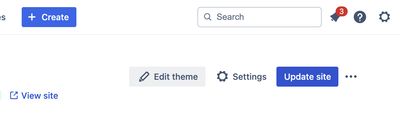
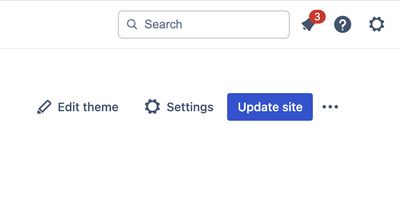
Step 5. Select Edit theme.
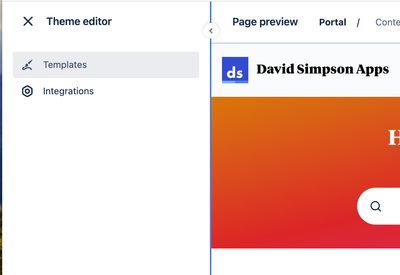
Step 6. Select Templates from the left menu.
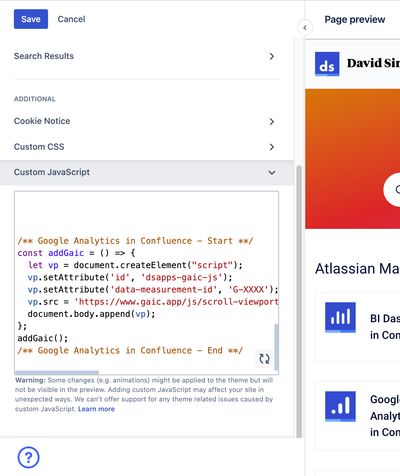
Step 7. Expand Custom JavaScript, paste the copied code, and save.
Step 8. Press Update site.
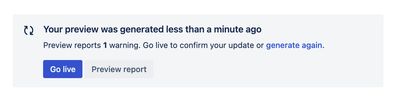
Step 9. Press the Go live button.
After around 24 hours, you should see data in your reports. It will then be possible to filter for Scroll Viewport data in the Where displayed dropdown in reports.