This automation block reads rows from an Excel file stored in SharePoint and creates or updates items on a monday.com board, using the Excel column headers to map data to monday.com columns by exact name match.
This is the simplest import option: no manual field mapping is required, provided the Excel header rowss match the monday.com column names exactly (including capitalisation and spacing).
Use this block to pull data from external partners or legacy systems who deliver updates in spreadsheet form — keeping monday.com boards current without manual re-entry.
Prerequisites
The Excel file must be stored in a SharePoint location accessible to the authenticated Microsoft 365 account.
Column headers in the Excel file must match the monday.com column names exactly.
For automations
Use the "Create from scratch" automation builder to select the relevant trigger (for example, "Every day at"), then paste "Import from Excel (with exact match on column names)" into the Then section.
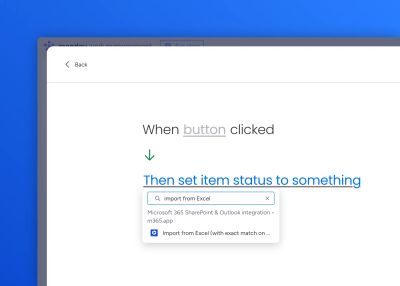
Sign into Microsoft 365, or select the account you wish to use:
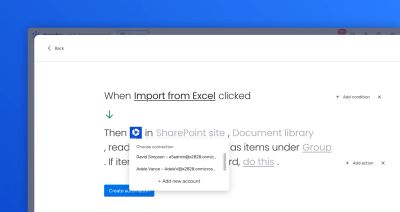
Select the SharePoint site, document library, and the spreadsheet you wish to import.
Also select the group where the items will be added, and the behaviour when a duplicate item name is found:
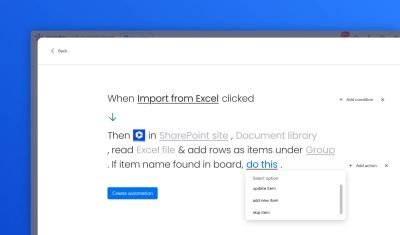
Click Save automation.
For workflows
Create a workflow and select "Import from Excel (with exact match on column names)" as the action.

Sign into Microsoft 365, select the SharePoint site, document library, and the spreadsheet you wish to import.
Also select the group where the items will be added, and the behaviour when a duplicate item name is found:
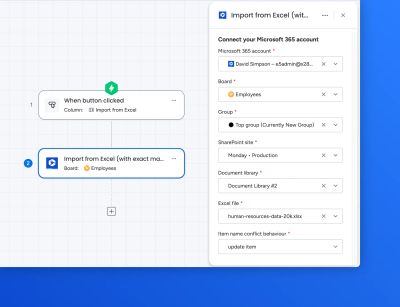
Click on Publish workflow.