Once signed in to Microsoft 365:
- Individual users can revoke access to their own Microsoft 365 account
- Admin users can revoke access to all Microsoft 365 account users
Revoking access for individual users
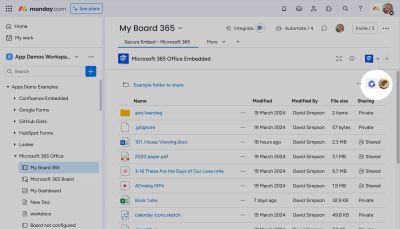
Press the Microsoft 365 profile dropdown menu in the Secure Embed app
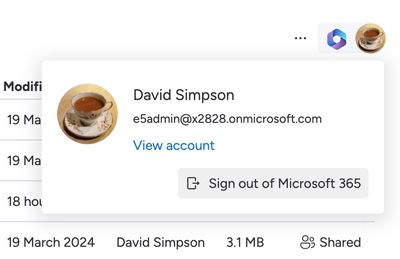
Press Sign out of Microsoft 365
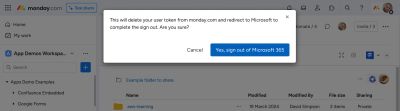
On the confirm screen, press Yes, sign out of Microsoft 365
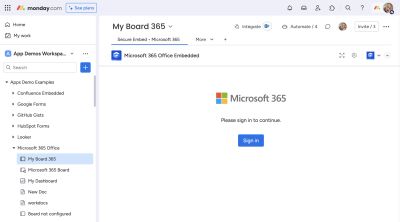
A new window will open to complete the sign-out process in Microsoft 365
You have now signed out of Microsoft 365 and will need to sign in again to continue using the app.
Revoking access for all users
If you want to revoke access for all users, sign in to monday.com as an admin user, and follow the steps in the video below.
All user tokens will be deleted from monday.com secure storage.
All users will now have to sign in to Microsoft 365 to continue using the app for views, and for legacy automation templates.