This prompt assumes that for each item in the board, there is a configured SharePoint folder for that item.
Sidekick prompt
Read any Excel spreadsheets in the SharePoint folder configured for this item
Sidekick lists the spreadsheets found:
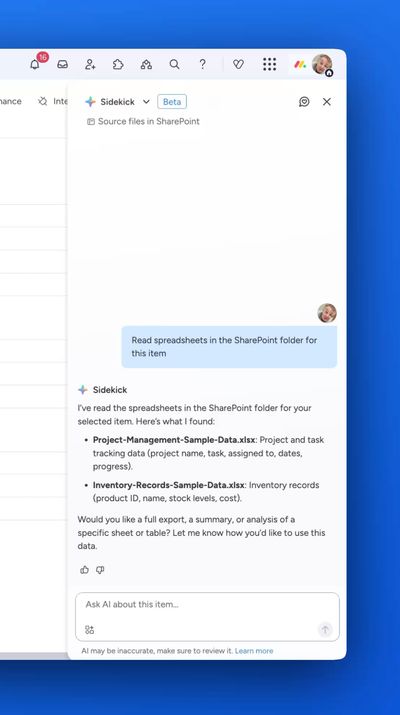
You can then follow up with prompts such as:
- "Preview the data from the 'Project-Management-Sample-Data.xlsx' spreadsheet"
- "Filter the data in the spreadsheet to only show rows from 'Sales' and 'Marketing' projects"
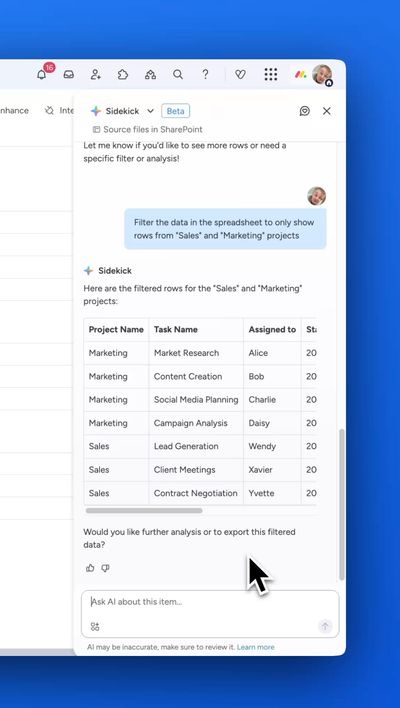
And then import just the data we need from the spreadsheet into the monday.com board:
Import the filtered data from the "Project-Management-Sample-Data.xlsx" spreadsheet into the board
- Only import data for projects "Marketing" and "Sales"
- Add each row with task name as the item name in the group "Tasks".
- Add appropriate columns
- Add the "Project Name" column from the spreadsheet as a dropdown column, populating it with each of the project names
- For the "Assigned to" column, just use a text field as those people are not currently in monday.com
- Add a status column and populate the dropdowns based on the percentages in the "Progress" column
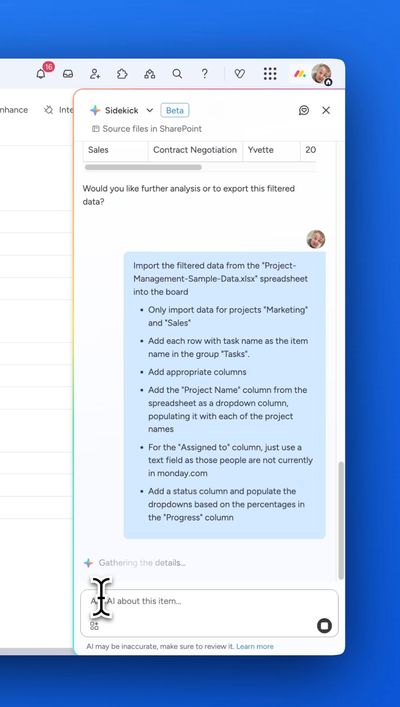
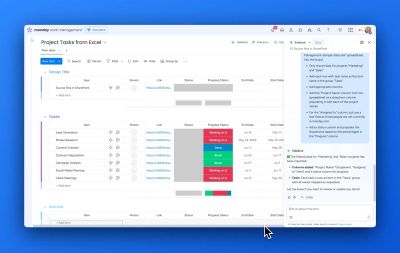
The data is imported:
How it works
Here’s a walkthrough video to show how the feature works
Sidekick reads Excel files from the SharePoint folder configured for the item
You can preview and filter the data interactively
Matching data is imported into your monday.com board