Keep your files up-to-date by syncing specific columns from monday.com to a SharePoint folder.
Automation recipes
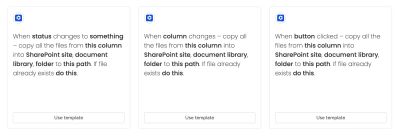
- When status changes to something — copy all files from this column into SharePoint site, document library, folder to this path. If file already exists do this.
- When column changes — copy all files from this column into SharePoint site, document library, folder to this path. If file already exists do this.
- When button clicked — copy all files from this column into SharePoint site, document library, folder to this path. If file already exists do this.
Specifics
Templated folder path creation
The folder structure specified in {this path} can be created with normal text and can also be populated by fields from the board item. It is created within the folder named in {this path}.
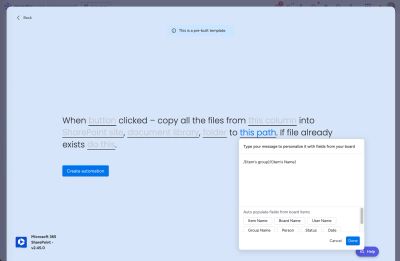
If the folder named in {folder} is at /Documents/Boards/My Board/ in the SharePoint site:
Examples of folder paths used by the {this path} field:
/— create the files within the folder named in{this path}in the recipe sentence. e.g. at/Documents/Boards/My Board/in the SharePoint site/{item's group}/{item's name}— creates sub-folders within the folder named in{this path}based on the name of the group and item, and then uploads the files. e.g. at/Documents/Boards/My Board/My Group/My Itemin the SharePoint site
If the folder structure already exists, the files will be added into the existing folders in SharePoint.
If the file already exists
If a file exists in the SharePoint folder with the same name as the file from the monday.com, there are 2 options:
- Rename the new file
- Replace the original file
How the automation works
Here’s a walkthrough video to show how the automation works: