Every time period, import from an Excel file hosted on a SharePoint site.
This is a great way to sync data from an external Excel file into a board in monday.com.
This automation is useful if your daily tasks in monday.com are imported from an external system such as SAP or others. You external system can export to an Excel file hosted in SharePoint with all the new items in the Excel file, and then the automation reads the items from Excel and populates a monday.com board.
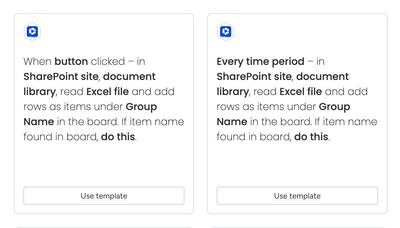
Recipe sentences
- Every time period – in SharePoint site, read Excel file and add rows as items under Group Name
- When button clicked – in SharePoint site, read Excel file and add rows as items
When duplicates are found, you can choose to: add a new item, update the existing item, or ignore.
How it works
Here’s a walkthrough video to show how the automation works:
Requirements
Spreadsheet file requirements:
- Location: SharePoint site (OneDrive is not supported)
- Format: XLSX
- Single worksheet only (only the first is imported if multiple exist)
- First row must contain column titles
- Item name must be in a column named Name (empty rows are not imported)
- Column names must match monday.com column titles (case-insensitive)
- Column names must be unique (duplicates will use the first occurrence)
Supported column types
Name, Date, Email, Link, Long text, Numbers, Phone, Status, Text
Unsupported column types
People, Dropdown, Timeline, Time tracking, Checkbox, Tags, File, Location, Rating, Button, Formula, Vote, Hour, Week