This automation block allows you to import a single email message from Outlook into an item's updates based on the Message ID.
The standard use case for this automation block is the third part of the following sentences:
- When an email is received in Outlook, create an item, and add the email into the item's updates
- When status changes, send an email with Outlook, and add the email into the item's updates
How it works
For automations
This is normally a 2 or 3 step process.
For example:
- Add a trigger, e.g.
- When status changes to something - if the Email Message ID is already populated in a column
- Add the action – Import email message into update • Outlook – this automation block
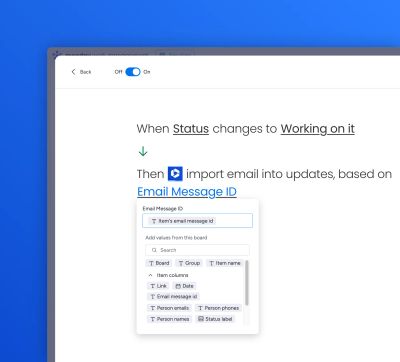
Or:
- Add a trigger, e.g.
- When email received in Outlook – provided by monday.com - emits Message ID – the Email Message ID needs to be populated in a column for later use
- Add the action – Create item – provided by monday.com
- Add the action – Import email message into update • Outlook – this automation block
In the last step above, fill out the various fields. Use the Message ID (saved to a column) from step 1 in the Email Message ID field.
For workflows
This is normally a 3 step process
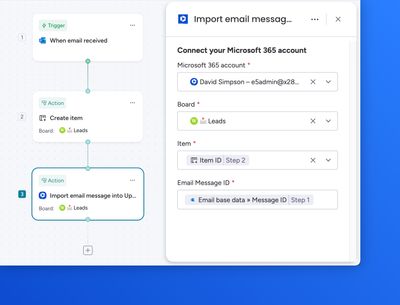
- Add the trigger – When email received in Outlook – provided by monday.com - emits Message ID
- Add the action – Create item – provided by monday.com
- Add the action – Import email message into update • Outlook – this automation block
In step 3 above, fill out the various fields. Use the Message ID from step 1 in the Email Message ID field:
Key benefits
- Exact dates and times of the original email is retained in the update
- Emails from private mailboxes can be shared team-wide
- Imported email persist in the update even after team members depart