Sometimes automations will fail. There are a number of reasons why an automation may fail. If an automation does fail, then details of why it failed will be displayed in notifications.
Reasons for automation failure
The automation user has logged out of Microsoft
When a user signs out of Microsoft 365 in monday.com, the app can no longer access Microsoft 365, so the automation will fail.
Steps to view failure reason:
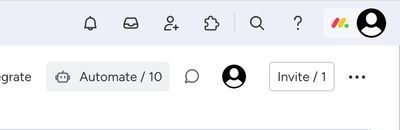
- Click on the Automate button
- Select the automation
- View the run history
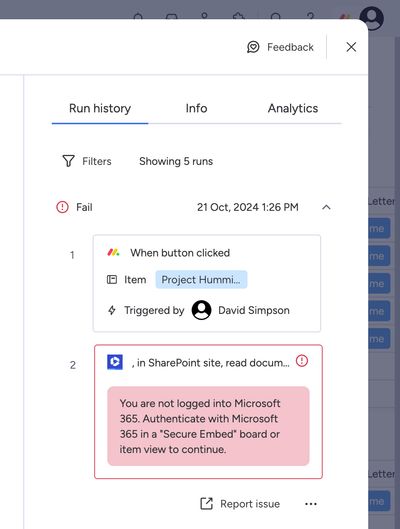
Details of what went wrong and how to fix it should be displayed.
The automation gets stuck in a page reload loop
Sometimes during configuration of third-party automations, monday.com fails to load the authentication screen for external systems. When this happens, we recommend that you wait a period of time and then try again.
Automation fails because 'Enforce unique values' feature in SharePoint blocks folder or file copying
Enforce unique values is a setting on a SharePoint metadata column. When you create a new metadata column, you can check off the appropriate radio button to enable it (it is disabled by default). Once enabled, it assures that the value chosen for a specific field in the whole SharePoint document library can only be chosen once.
If this setting has been configured on a template folder or document that you are using in an automation, then the automation will fail. The automation run history (in monday.com) will display an error message.
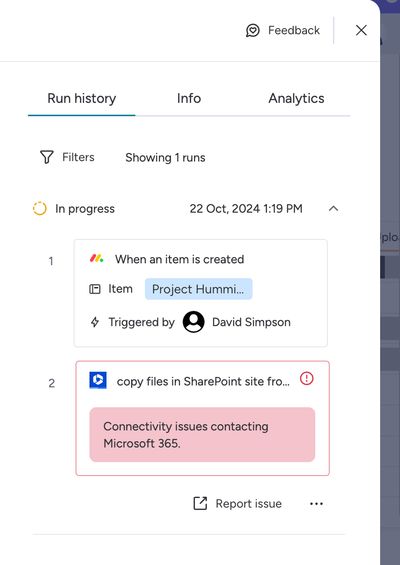
See: How to disable 'enforce unique values' in SharePoint
Re-running failed automations
If your automation has failed, it may be possible to re-run the automation after fixing the cause of the failure.
- For 'when button clicked' automations, this is straightforward. Simply click on the button again.
- For item creation or status change automations, follow the steps in Re-running automations.