If you see a screen indicating that you don't have access, you can request permission to view the file or folder from the person who configured the app.
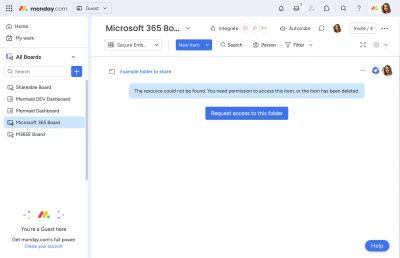
Who configured this?
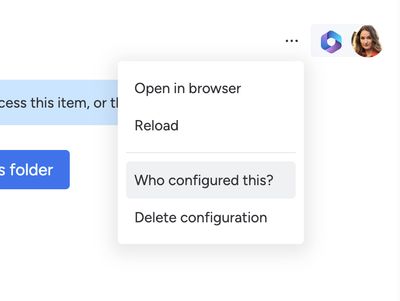
You can see who configured the app by pressing the “•••” button and selecting “Who configured this?” from the menu:
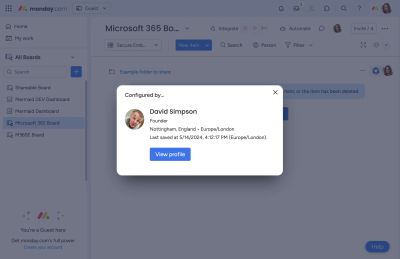
You will see a modal with information on the person who configured the app:
Request access to a folder or file
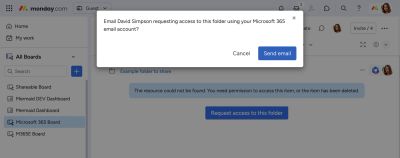
- Press the Request access to this folder/file button
- A warning message appears where you can email the person who configured the app, or cancel
- Press the Send email button
In Microsoft Outlook
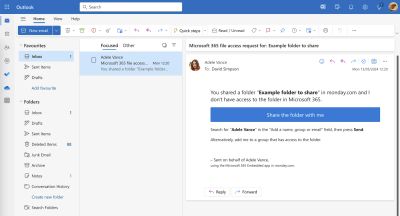
When you request access to a file or folder from within monday.com, an email is sent from your Microsoft 365 email account to the person who configured the app.
They will receive an email similar to this:
In Microsoft 365
When they press the "Share the folder/file with me" button, they are redirected to the file or folder in Microsoft 365 to add permission.
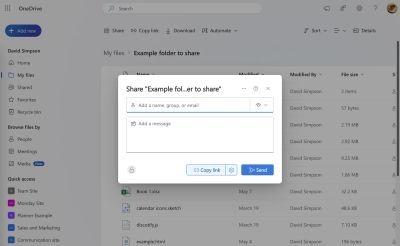
Once the requester has been given access to the file or folder, or added to a group with access, they will be able to see the app content within monday.com.
Video
The process is detailed in the second part of this walkthrough video: