This is a series of automations which allow the user to export monday.com hosted files in Files columns to a SharePoint folder configured in a linked item.
Example recipe sentences:
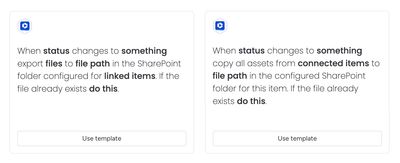
There are two automation types:
- Push: the files from a specific column in the current item to the SharePoint folder configured for a linked item
- Pull: files in all columns in items linked to the SharePoint folder configured for the current item
Automation recipes
Push to linked item
- When
{button}clicked, export{files}to{file path}in the SharePoint folder configured for{linked items}. If the file already exists{do this}. - When
{status}changes to{something}, export{files}to{file path}in the SharePoint folder configured for{linked items}. If the file already exists{do this}. - When
{column}changes, export{files}to{file path}in the SharePoint folder configured for{linked items}. If the file already exists {do this}.
Pull from linked items
- When
{button}clicked, copy all assets from{connected items}to{file path}in the SharePoint folder configured for this item. If the file already exists{do this}. - When
{status}changes to{something}, copy all assets from{connected items}to{file path}in the SharePoint folder configured for this item. If the file already exists{do this}.
Specifics
Templated folder path creation
The folder structure specified in {file path} is created within the configured SharePoint folder(s).
Examples:
/– create the files within the folder that is configured for the item/Client uploads/{board.name}/{Item's name}/– creates the folders if missing based on the name of the board and item, then uploads the files
If the folder structure already exists, the files will be added into the existing folders in SharePoint.
If the file already exists
If a file exists in the SharePoint folder with the same name as the file from monday.com, there are 2 options:
Rename the new file
Replace the original file
How the automations work
Here’s a walkthrough video to show how the automations work: