When an item is already linked to an existing calendar event, you can choose one of three behaviours:
- Do nothing
- Create additional events
- Update the existing event in some way
1 & 2 are easy, but 3 represents a challenge as you have to consider exactly what to do and the behaviour you require.
The automation block allow the following:
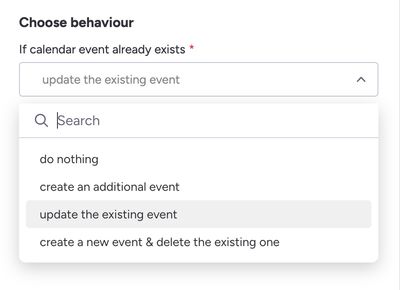
Behaviour on event updates
Below is the practical, real-world difference in Outlook calendar behaviour when you:
- Update the existing event
- Create a new event & delete the existing one
This matters a lot because Outlook handles identity, attendee user experience, notifications, and tracking differently.
1. Update the existing event
Behaviour for attendees
- Attendees receive an “Updated meeting” email
- Outlook keeps the same meeting ID (
iCalUidstays the same). - Attendees see this as the same meeting, just modified.
- Track status (Accepted / Declined) is preserved.
- Reminders and categorisation are generally preserved for attendees.
Behaviour in the organiser’s calendar
- Same event ID continues to exist.
- Any change you make (time, location, body, attendees, recurrence, etc.) updates the record.
- No duplication.
- Outlook links the update to the existing meeting.
Behaviour in attendees’ calendars
- They keep the same appointment entry.
- Their own modifications (notes, category colours, etc.) may remain, depending on Outlook client rules.
Email notifications
Depending on the type of change:
- Time/location changes → Outlook usually forces a meeting update email.
- Body changes → may or may not send an update (Outlook logic varies).
- Minor metadata (categories, showAs, etc.) → usually no update.
2. Create a new event & delete the existing one
This produces completely different behaviour.
❗ Outlook treats this as TWO SEPARATE EVENTS:
- One cancellation for the old event
- One new meeting invitation for the new event
Behaviour for attendees
Attendees receive:
- A meeting cancellation
- A brand-new meeting invite
This is disruptive because:
- Their accepted/declined state resets
- Their notes/categories on the original meeting are lost
- They must accept the new meeting again
- It clutters their inbox with two notifications instead of one
Behaviour in the organiser’s calendar
- You now have a new event ID / iCalUid.
- Any references (like Teams meeting join URL if auto-created) may change.
- Recurrence links break if this was a recurring event.
Behaviour in attendees’ calendars
- The old meeting disappears entirely.
- The new meeting creates a brand-new entry.
- All tracking history is gone.
Email notifications
- Outlook must send a cancellation
- Outlook must send a new meeting invite → You cannot suppress these.
Key Differences Summarised
| Behaviour | Update existing event | Delete and recreate event |
|---|---|---|
| iCalUid | Stays the same | Changes (treated as new meeting) |
| Attendee status preserved | ✔️ Yes | ❌ No |
| Attendee sees one update | ✔️ Yes | ❌ They see cancellation & new invite |
| Attendee notes/categories retained | Often ✔️ | ❌ No |
| Meeting link (Teams, etc.) | Usually retained | Often replaced |
| Notification emails | 0–1 update emails | Always 2 emails (cancel + invite) |
| Disruption level | Low | High |