When you use a shared mailbox (for example support@yourcompany.com) with the Service Desk board view or the Outlook Email item view, you may notice that:
- emails received by the shared mailbox appear as expected, but
- replies your team sends from the shared mailbox are missing – they aren't added as item updates, and don't appear in the email thread.
Why this happens
By default, when someone sends an email as (or on behalf of) a shared mailbox, Microsoft 365 saves the sent copy in that person's own Sent Items folder – not in the shared mailbox's Sent Items.
The reply looks like it came from the shared mailbox, but the shared mailbox itself never keeps a copy. Because the app reads email from the shared mailbox, it can't see these replies.
How to fix it
A Microsoft 365 administrator needs to turn on two settings for the shared mailbox, so that a copy of every sent email is also saved in the shared mailbox's own Sent Items.
Not sure who your administrator is? See How to find your Microsoft 365 admin.
Option 1: Microsoft 365 admin center
- Sign in to the Microsoft 365 admin center
- Go to Teams & groups → Shared mailboxes
- Select the shared mailbox
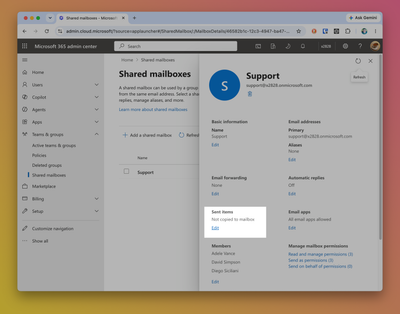
- Under Sent items, select Edit
- Turn on both:
- Copy items sent as this mailbox
- Copy items sent on behalf of this mailbox
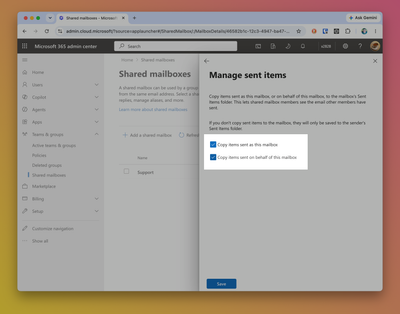
- Select Save


Option 2: PowerShell
If you prefer, or can't find the settings above, run the following in Exchange Online PowerShell, replacing the address with your shared mailbox:
Connect-ExchangeOnline
Set-Mailbox support@yourcompany.com -MessageCopyForSentAsEnabled $true -MessageCopyForSendOnBehalfEnabled $true
To check the settings, run:
Get-Mailbox support@yourcompany.com | Format-List MessageCopyFor*
Both values should be True.
After the change
- The change can take a little while to apply in Microsoft 365.
- New replies sent from the shared mailbox are added to the matching item as updates within a few minutes, and appear in the Outlook Email item view's email thread.
- Replies sent before the change are not copied to the shared mailbox, so they won't appear.
To test it, send a reply from the shared mailbox, then check that it appears in the shared mailbox's own Sent Items folder in Outlook.
Further reading
- Microsoft: Configure a shared mailbox – save sent items